
Speaker Label in Transcription: What It Is and Why It Matters
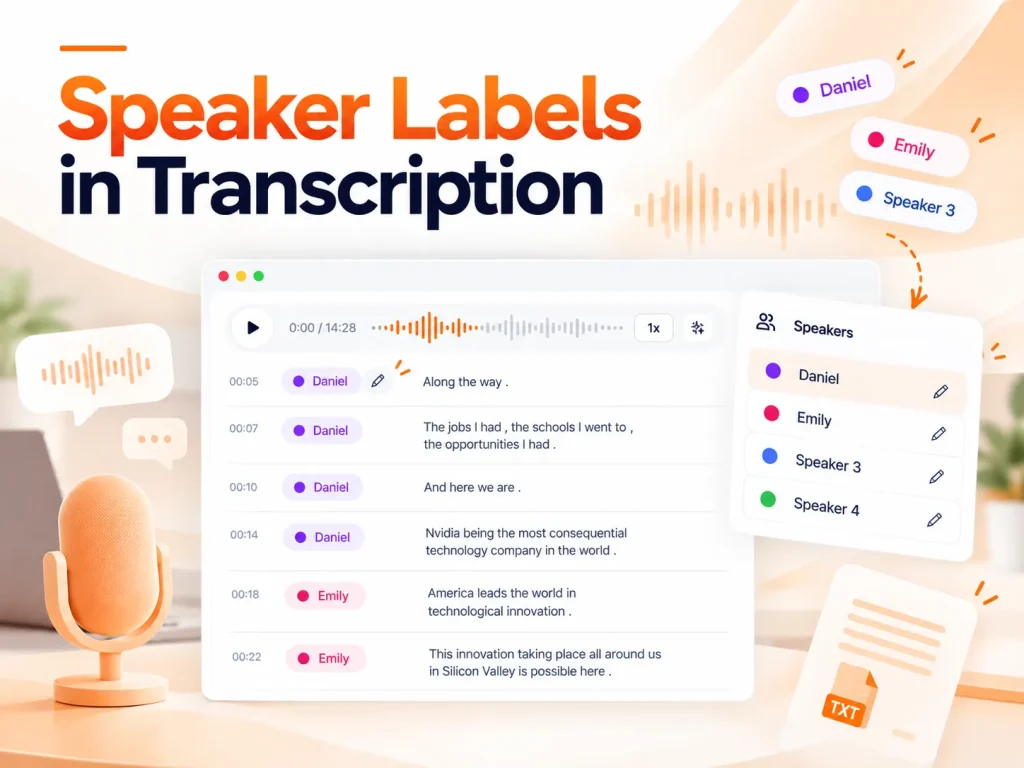
If it’s a single-speaker recording, a complete transcript is usually all you need. But once there are multiple people talking, especially in a back-and-forth meeting, simply turning everything into text isn’t quite enough. You might read through a whole section and still have no idea who said what.
That’s where speaker labels come in. They separate the transcript by speaker, so you can follow each person’s part as you read without having to keep going back to the recording to figure out who was speaking.
In this article, we’ll look at what speaker labels in transcription are, how they identify different speakers, and explore some of the ways they can be useful in real-world situations.
What Is a Speaker Label in Transcription?
Simply put, a speaker label is used to show who is speaking in a transcript. It usually appears as “Speaker 1,” “Speaker 2,” and so on, but can also be replaced with the speakers’ names when needed.
Without speaker labels, a transcript of a conversation between multiple people might look like this:
Without Speaker Labels:
“We need to move Friday's client call to Monday.”
“Monday works for me, but I'm not available before 2 p.m.”
“That's fine. I'll check with the client and suggest 2:30.”
“Can you also send them the updated proposal before the call?”
The conversation itself is clear, but without knowing who said each line, it’s hard to tell who is available on Monday and who needs to confirm the time with the client. In many cases, knowing who said what matters just as much as the content itself.
With speaker labels, the same conversation becomes much easier to follow:
With Speaker Labels:
Speaker 1: We need to move Friday's client call to Monday.
Speaker 2: Monday works for me, but I'm not available before 2 p.m.
Speaker 1: That's fine. I'll check with the client and suggest 2:30.
Speaker 2: Can you also send them the updated proposal before the call?
This makes it easier to see who said what, match each comment to the right person, and keep track of who suggested what and who agreed to handle each task.
How to Identify Who Said What in a Transcript?
Speaker labels at least keep everyone’s lines from being mixed together. But when a meeting has four or five people, or even more, labels like Speaker 1, Speaker 2, and Speaker 3 can quickly become hard to keep track of. By the time you get further into the transcript, you might still be wondering: Who exactly is Speaker 3?
That brings up another question: can you simply change Speaker 1 and Speaker 2 to their actual names?
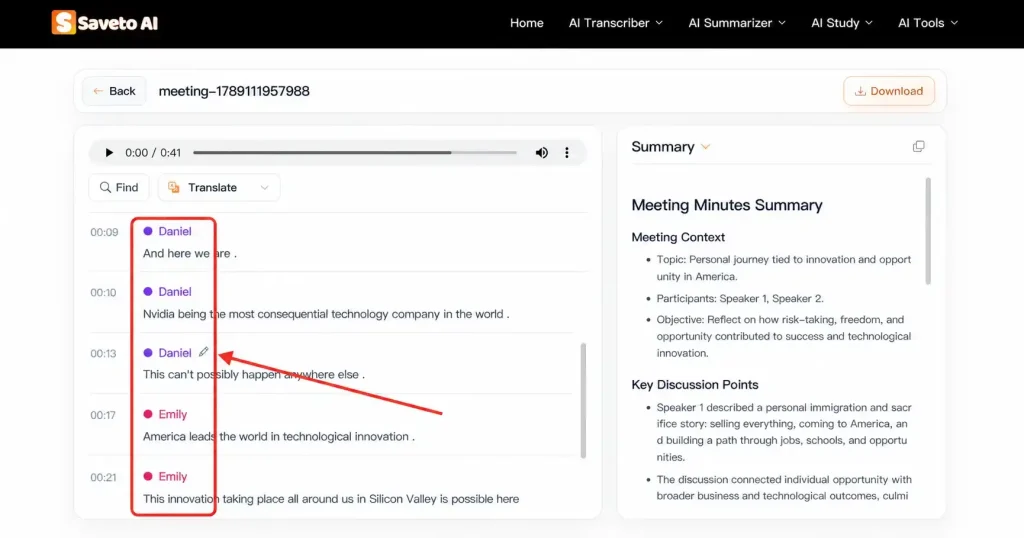
Take Saveto AI as an example. After the transcript is generated, you can edit the speaker names and replace default labels like Speaker 1 and Speaker 2 with their actual names.
Step1: Open Saveto AI's AI Meeting Note Taker and start recording
Open AI Meeting Note Taker, choose the speaker language and a suitable mode, then start recording. You can choose Standard, Enhanced, or Multilingual based on your recording needs.
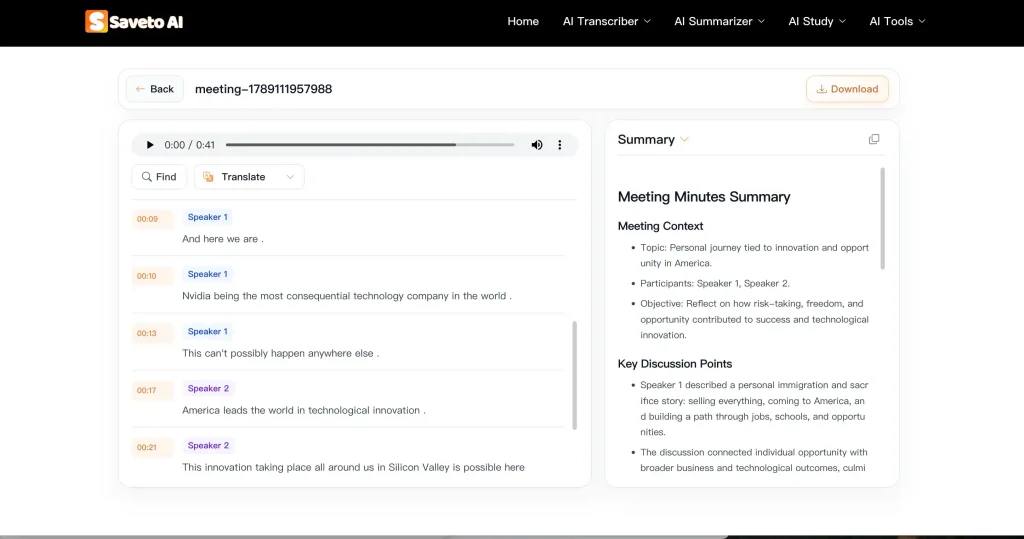
Step2: Check the Transcript and edit the speaker names
Once the meeting is over, Saveto AI will generate a transcript with speaker labels. You can edit labels like Speaker 1 and Speaker 2 and replace them with the actual names, making the transcript much easier to follow.
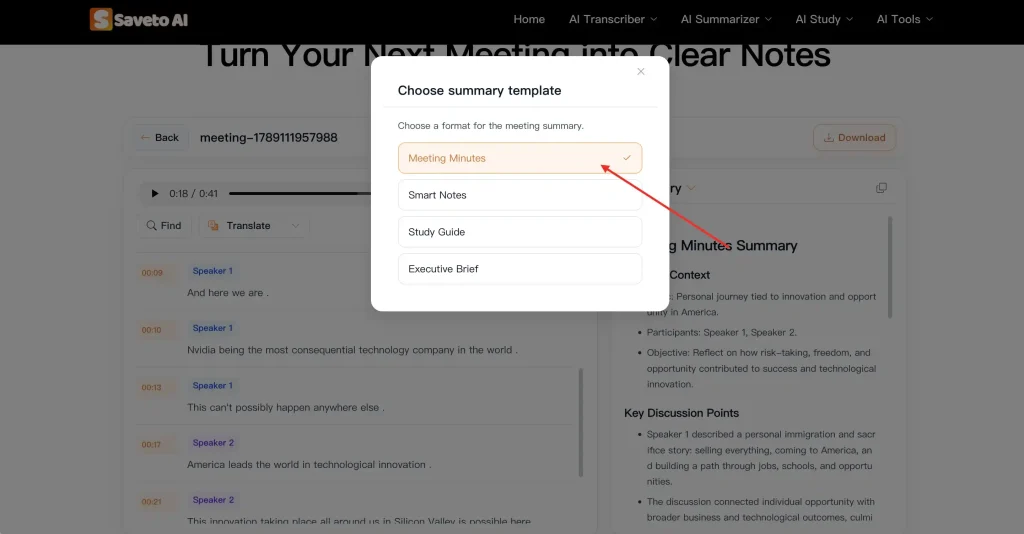
Step3: Download the Transcript or generate a meeting summary
Once the speaker names are set, you can download the transcript or choose a suitable template in AI Meeting Note Taker to organize the meeting and quickly pull out key points, decisions, and action items
When Are Speaker Labels Useful?
Meetings
After a meeting, you usually don’t need to go back through the entire conversation. What matters is who suggested what, who agreed to follow up, and what was decided. Speaker labels make it easier to find those parts and put together meeting notes or action items.
Interviews
After an interview, you may need to find something a specific person said in an hour-long recording. Speaker labels make it easy to tell the interviewer’s questions from the interviewee’s answers, so you don’t have to listen through the whole recording again.
Lectures
In a recorded class, students may ask questions during the lecture. Speaker labels help you tell the teacher’s explanations apart from students’ questions, making it easier to find a specific question or answer when reviewing the transcript.
Customer Calls
In a customer call, what matters most is often what the customer asked and how the support agent responded. Speaker labels connect each part of the conversation to the right person, making it easier to review the call or follow up later.
What Affects Speaker Label Accuracy and How to Improve It
The accuracy of speaker labels depends a lot on the recording itself. Here are a few things to keep in mind.
1.Audio Quality
The clearer the recording, the easier it is to tell different speakers apart. Heavy background noise, low volume, or someone sitting too far from the microphone can all affect speaker label accuracy.
Tips:
Try to record in a quiet environment and make sure everyone's voice is picked up clearly. For recordings with multiple people, having speakers closer to the microphone can help reduce background noise and distortion. If the recording environment is noisy, you can also use Saveto AI's Enhanced mode.
2.People Talking Over Each Other
When two people speak at the same time, it can be difficult to tell which voice belongs to whom. This is especially common when people interrupt each other or jump into the conversation.
Tips:
Try to avoid speaking over each other and let one person finish before the next person starts. For formal meetings, having someone manage the speaking order can also help. This makes the speakers easier to identify and keeps the transcript easier to follow.
3.Number of Speakers
The more people there are in a recording, the more voices the system needs to tell apart. A two-person conversation is usually easier to handle, while a recording with five or six speakers can make labels like Speaker 1 and Speaker 2 easier to mix up.
Tips:
Lorem ipsum dolor sit amet, consectetur adipiscing elit. Ut elit tellus, luctus nec ullamcorper mattis, pulvinar dapibus leo.
4.Accents, Speaking Speed, and Languages
Different accents, speaking speeds, and multiple languages in the same recording can also make speaker identification more difficult. This can be especially noticeable in international meetings where people may speak different languages or have strong accents.
Tips:
Choose the correct speaker language before recording and select a mode that fits the recording. For noisy backgrounds, strong accents, or complex vocabulary, Enhanced can be a better choice. If multiple languages are used in the same recording, choose Multilingual.
Conclusion
Speaker labels may seem like a small part of a transcript, but they can be really useful when more than one person is speaking. Instead of going back to the recording to figure out who said what, you can quickly find each person’s part in the transcript.
If you often work with meetings, interviews, or other recordings with multiple speakers, Speaker Label in Transcription can make the transcript much easier to work with. Take Saveto AI as an example. It automatically adds speaker labels to the transcript, and you can change Speaker 1, Speaker 2, and so on to the speakers’ actual names after the transcript is generated.
For longer recordings, this small change can make the transcript much easier to use.
FAQs
1.What is a Speaker Label in Transcription?
A speaker label shows who is speaking in a transcript. It usually appears as Speaker 1, Speaker 2, and so on, but can also be changed to the speakers’ actual names.
2.How does Speaker Label in Transcription work?
Transcription tools identify different speakers based on their voices and add speaker labels to the transcript. Poor audio quality, overlapping speech, or too many speakers can affect how accurately they are identified.
3.Can I change Speaker 1 and Speaker 2 to real names?
Lorem ipsum dolor sit amet, consectetur adipiscing elit. Ut elit tellus, luctus nec ullamcorper mattis, pulvinar dapibus leo.
4.Why are speaker labels sometimes incorrect?
Background noise, people talking at the same time, a large number of speakers, strong accents, or changes in speaking speed can make it harder to identify speakers correctly.
5.How can I improve Speaker Label in Transcription accuracy?
Use clear audio, keep background noise to a minimum, and try not to have several people speak at the same time. If the recording is noisy, you can use Saveto AI’s Enhanced mode. For recordings with multiple languages, choose Multilingual mode.
6.What types of recordings are speaker labels useful for?
Speaker labels are especially useful for meetings, interviews, podcasts, lectures, and customer calls. Whenever a recording has multiple speakers, they can make the transcript much easier to read and organize.